Showroom editing / 5 min read
AI car photo backgrounds: a practical guide
A consistent showroom background can make a photo set easier to browse. The important distinction is between changing the setting and changing the vehicle. Buyers still need an accurate view of the actual car and its condition.
By Sully's Showroom
Start with a usable original
Use a sharp photograph that shows the entire vehicle, including the wheels and lower bodywork. A background editor cannot reliably recover detail hidden behind an object or cropped out of the source. If the car is blurred, heavily shadowed or partly out of frame, retake the photograph first.
Keep the original angle consistent with the background you choose. A car photographed from above may look out of place against a showroom floor viewed from a low angle. Leave enough room around the car to judge its scale and position.
Choose a background that supports the car
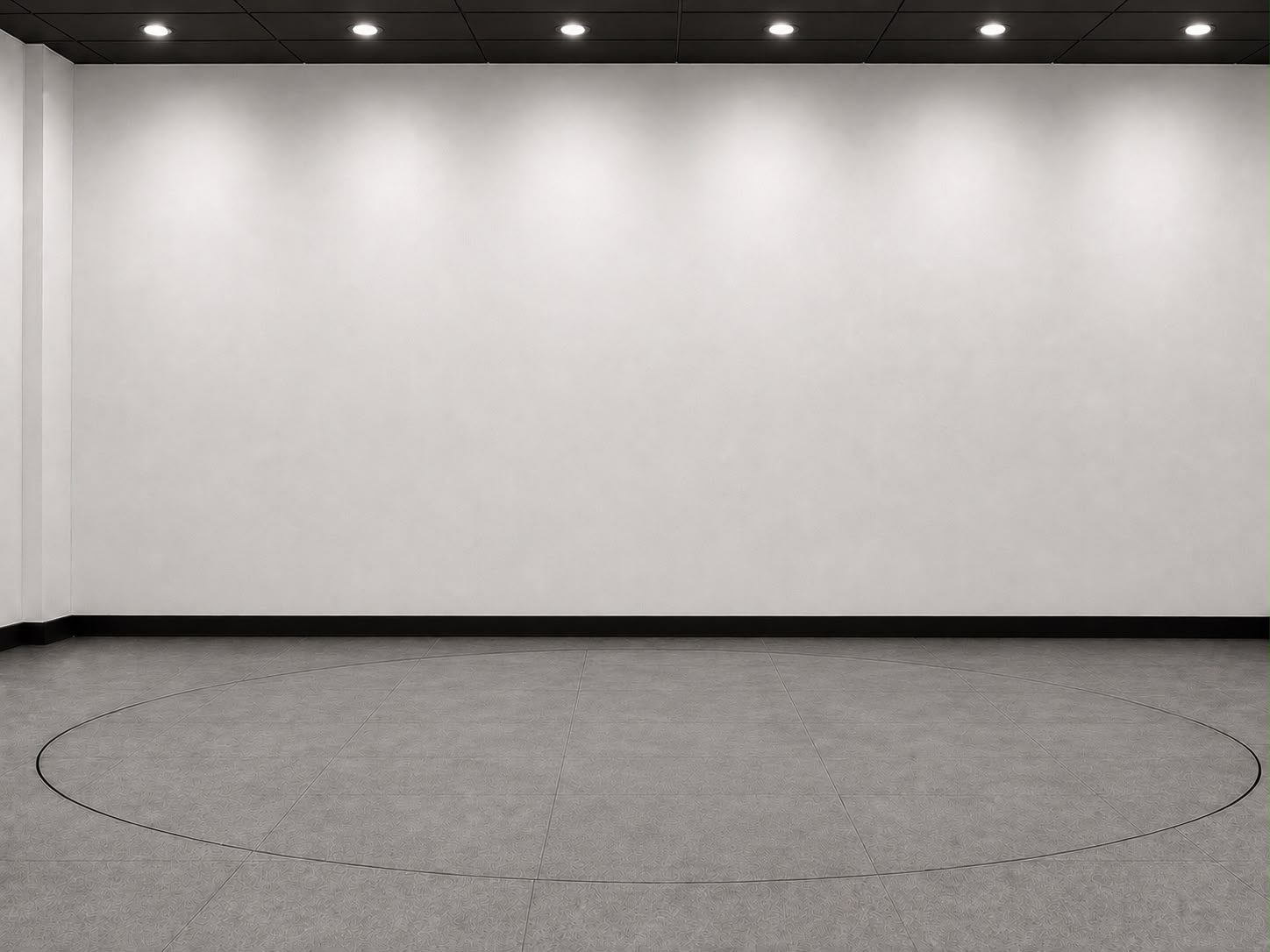
A plain studio scene gives the bodywork a clear outline. Avoid busy architecture or strong lighting that competes with the vehicle. Compare the floor perspective and available space with your source photos before using the same background for a batch.
Sully's Showroom lets you upload your own background or use the default studio scene. You can also set an optional display number plate and apply it to all uploaded photographs. Keep the actual vehicle registration and sale information accurate in your advert.
Keep editing instructions specific
Describe the presentation change you want, rather than asking for a different vehicle. For example: use the selected showroom background, keep the original wheels and paint colour, and avoid adding a floor reflection. Requests for a new body style, removed equipment or concealed damage can misrepresent the car.
The generator includes instructions to retain the uploaded background and source vehicle, remove stickers and avoid car reflections. These are instructions to an image model, not a guarantee of pixel-identical output. Always inspect the result, especially around glass, trim and the floor.
Compare original and edited images
- Paint colour, wheel design and visible equipment still match.
- Badges, lights, mirrors and body panels have not changed.
- The car's proportions and position look credible.
- Window edges and tyre contact points are clean.
- The chosen background has not gained unwanted details.
- Damage has not disappeared or been invented.
Sully's Showroom displays the original and generated photo side by side, and both can be enlarged. If a result is inaccurate, regenerate that photograph with a clearer instruction or use the original instead. Keep unedited images for damage and condition disclosure.
Export and check the final listing
Generated photos are saved for download as JPG files. Download one result, separate JPGs or a ZIP of the completed images. Remove any rejected photo before downloading the batch so it does not make its way into the advert.
Review the downloaded files as well as the on-screen previews. Check your marketplace's policy on edited imagery, disclose background editing where required and never imply that a virtual showroom is the vehicle's real location. A polished setting should support an honest advert.
Further reading
Prepare your next car listing
Open the generator